Currently, there are three ways to try out the K1 or K3 cloud development board. For a temporary session, method one is recommended; for a more stable experience, methods two and three are recommended.
Method one: Open directly in a web browser
Step 1: Sign in at Bianbu Cloud
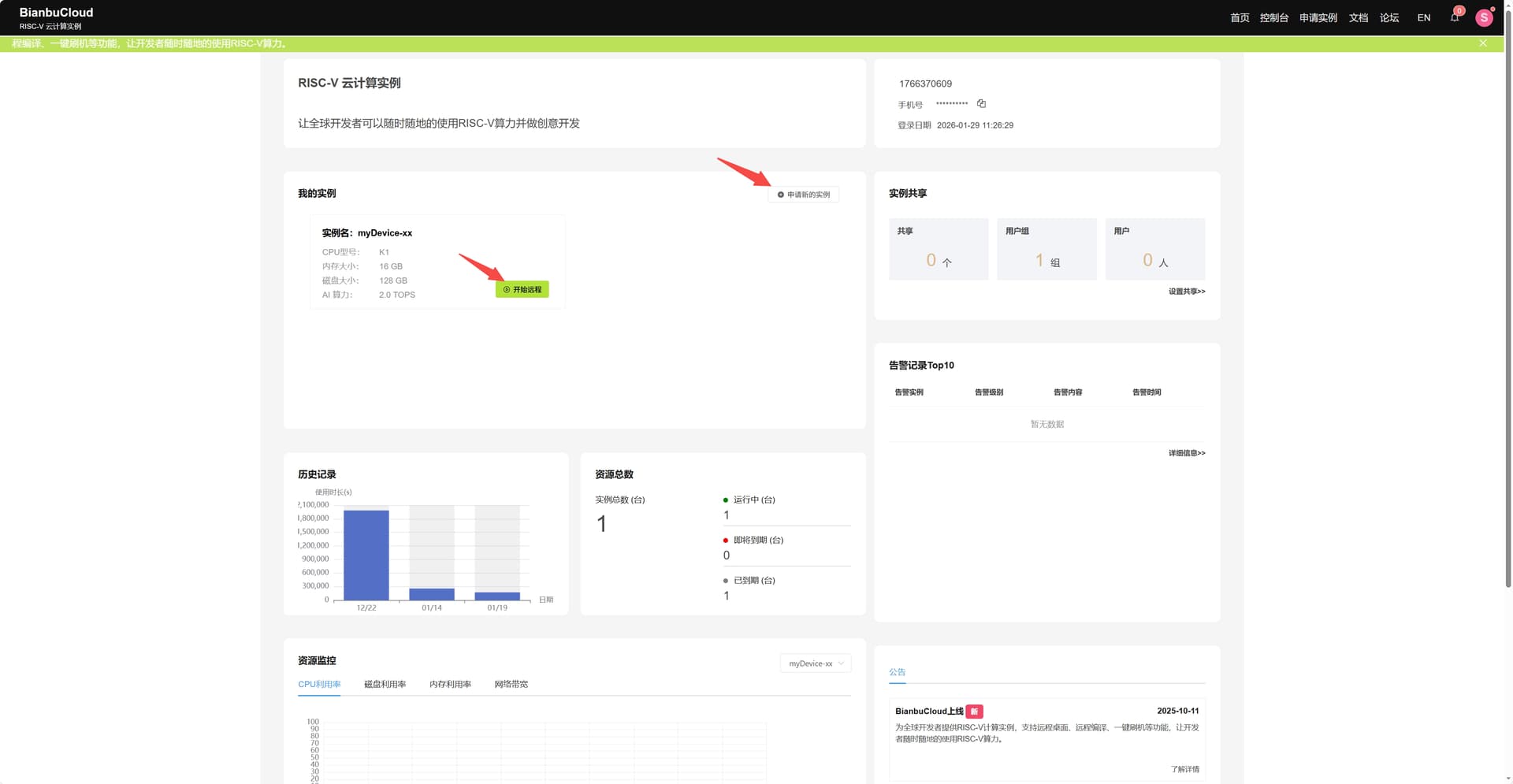
Step 2: Click Start Remote
You can now try it out. The success screen is shown below.
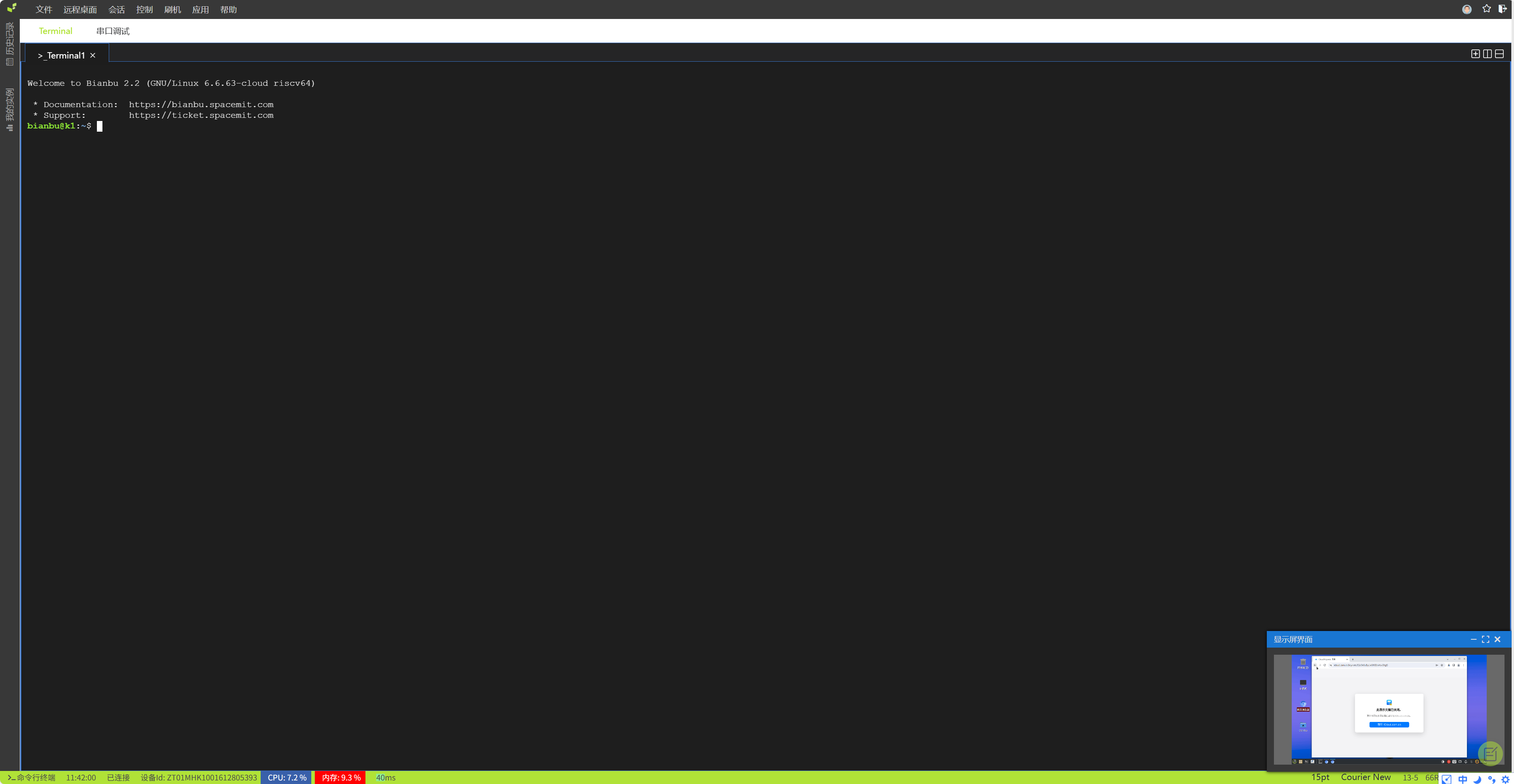
Method two: Connect locally using MobaXterm
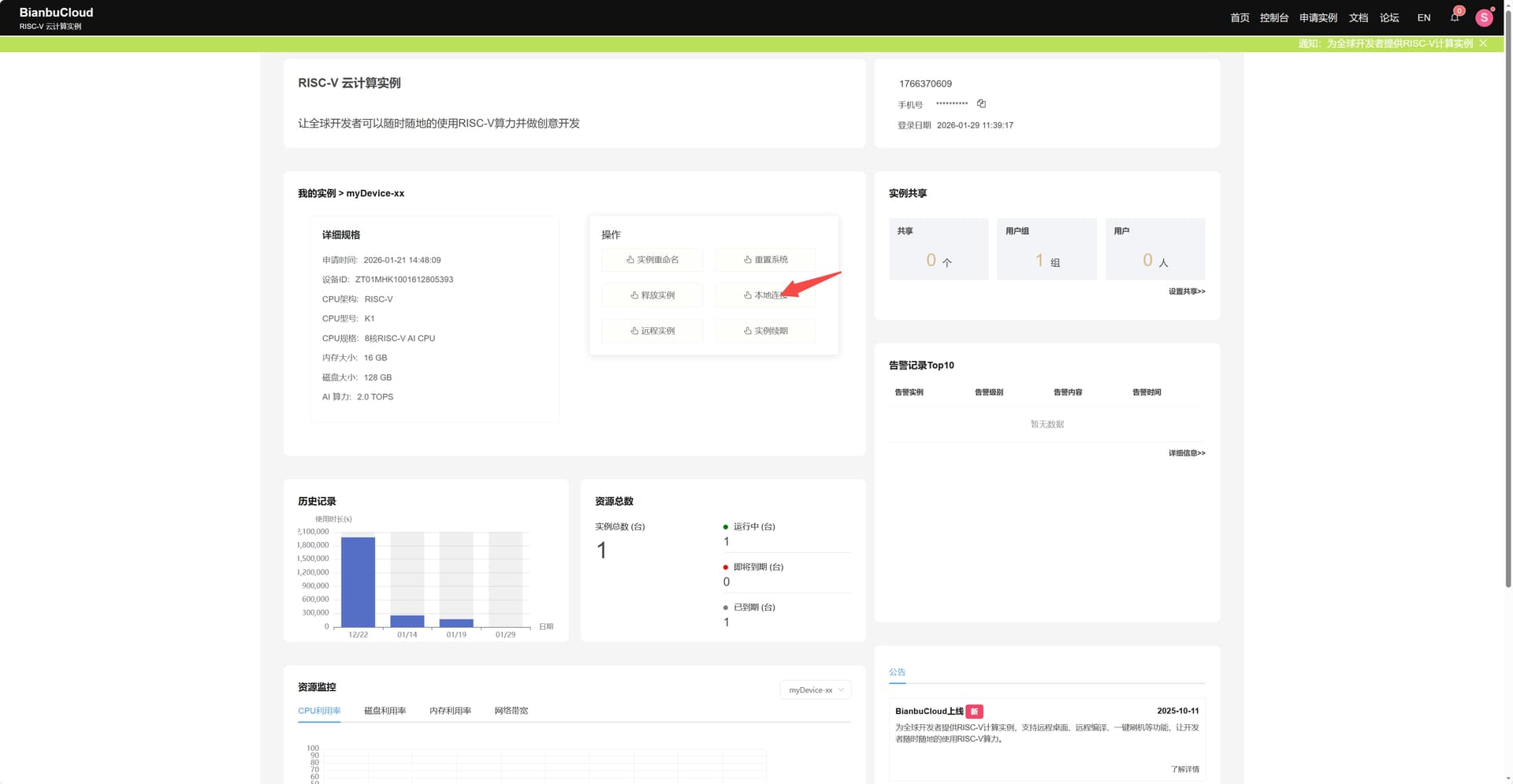
Step 1: Click where the arrow points
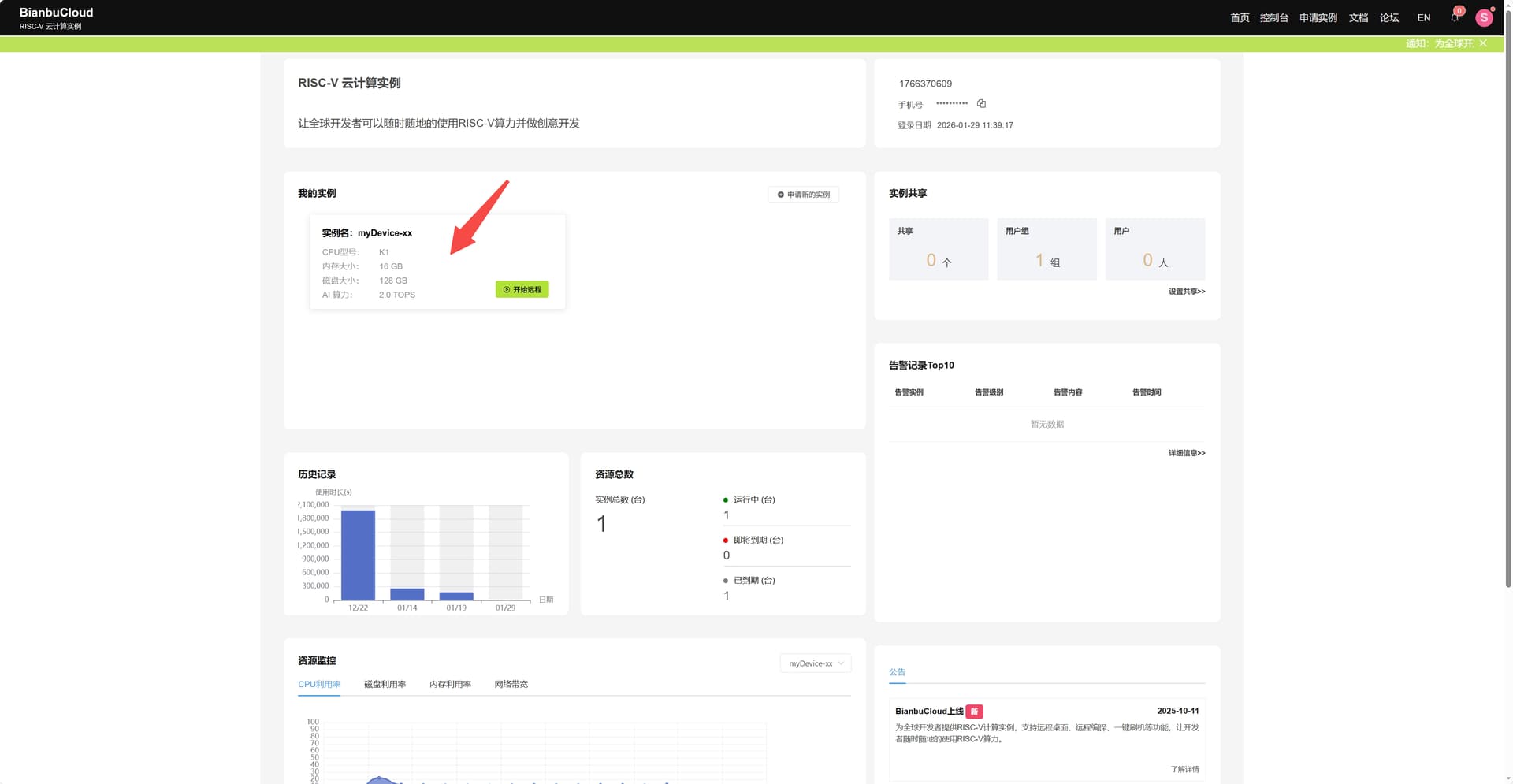
This will take you to this screen
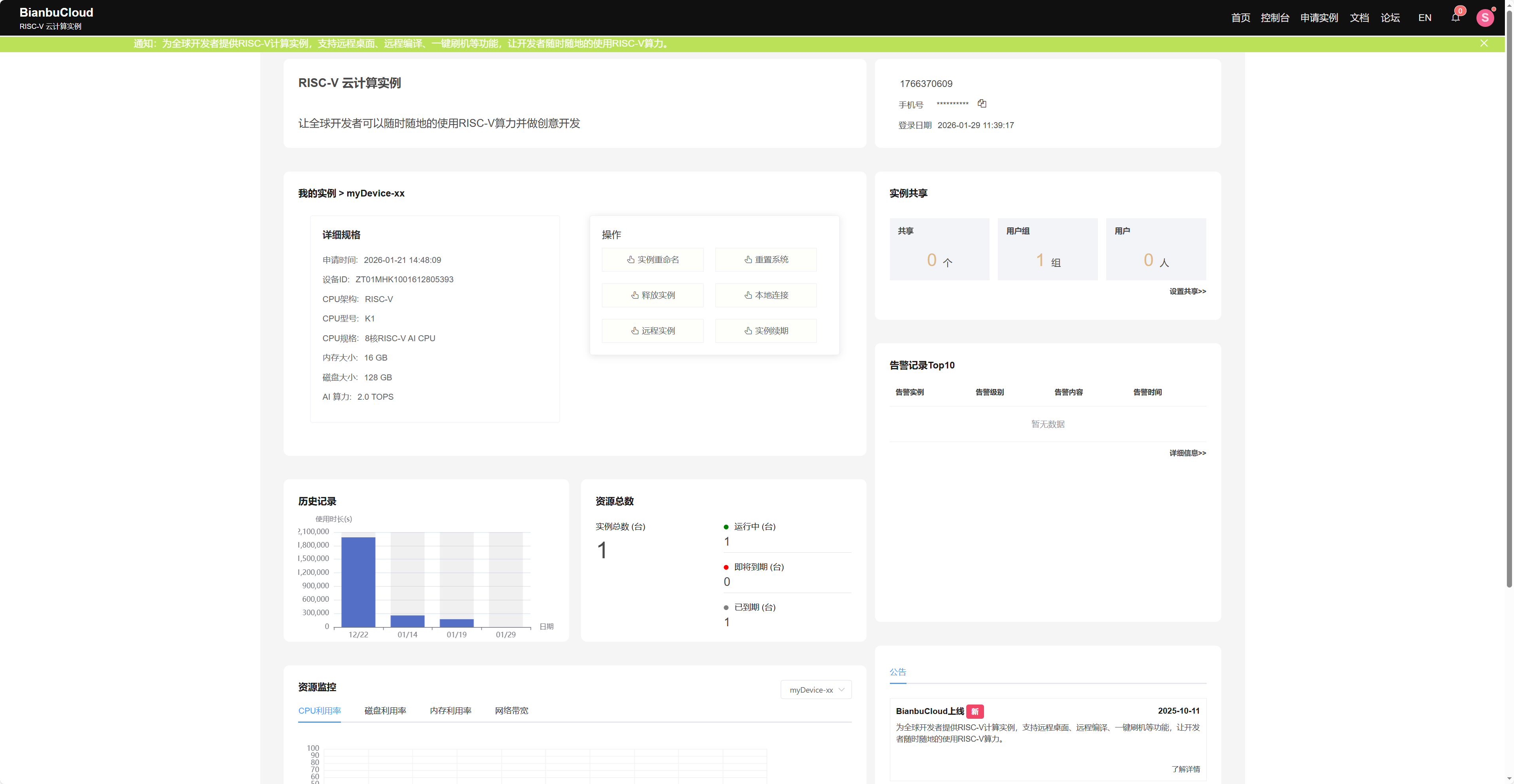
Step 2: Click Local Connection
This will take you to this screen. Follow the provided steps to connect.
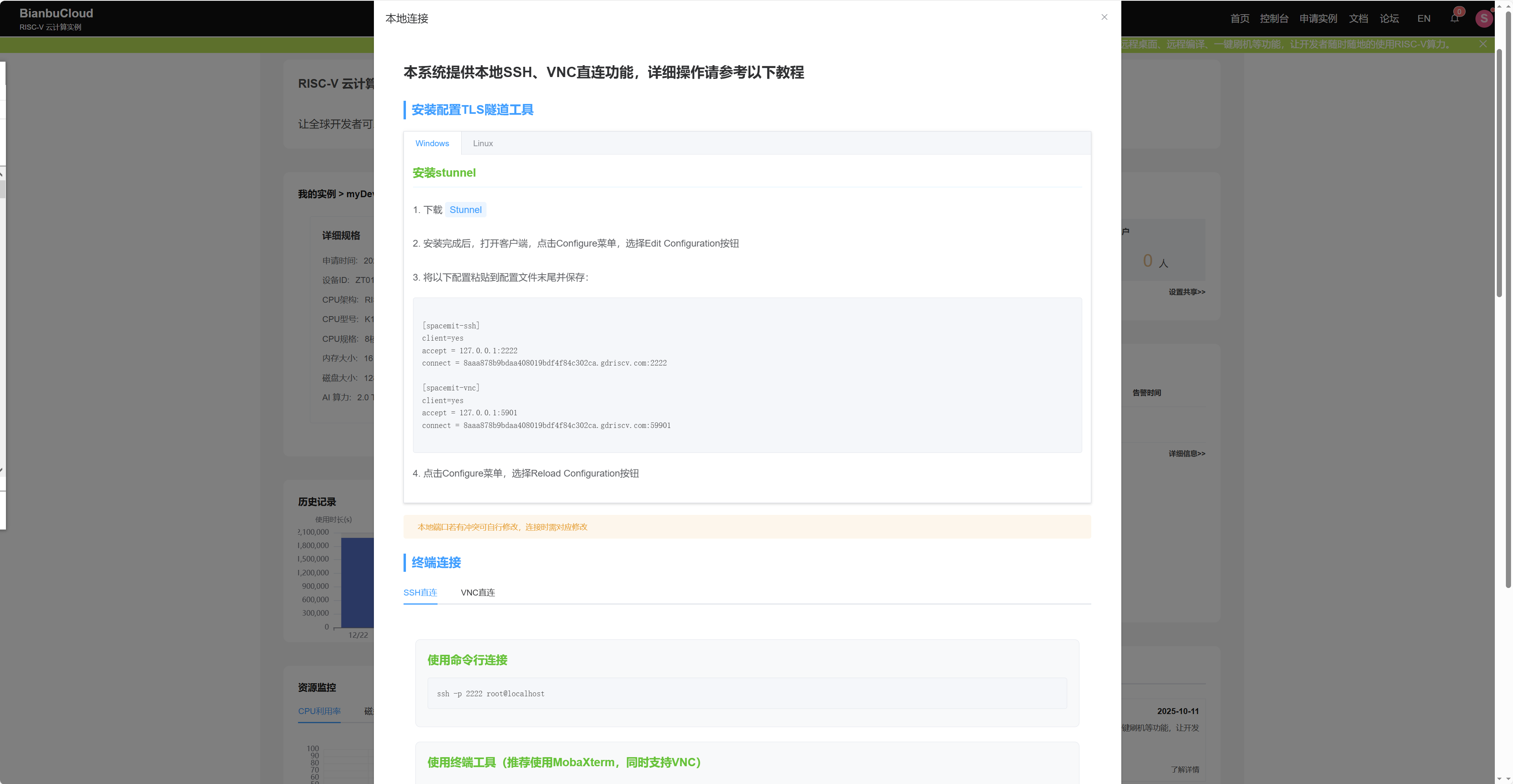
Method three: Connect locally using Visual Studio Code
Step 1: Click where the arrow points
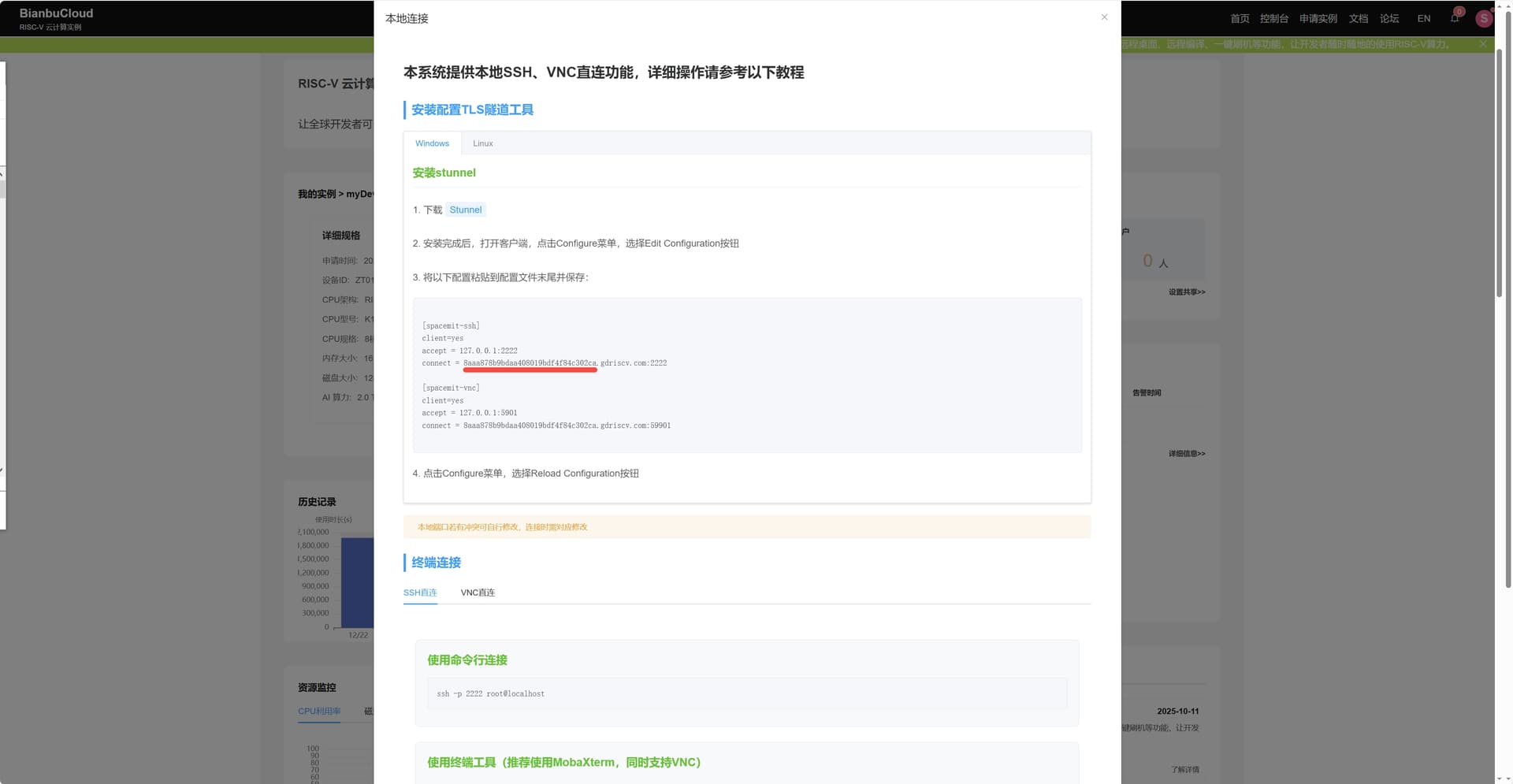
This will take you to this screen
Step 2: Click Local Connection
This will take you to this screen. Copy the unique subdomain dynamically generated for your development board instance, shown with a red underline as BianbuCloud.
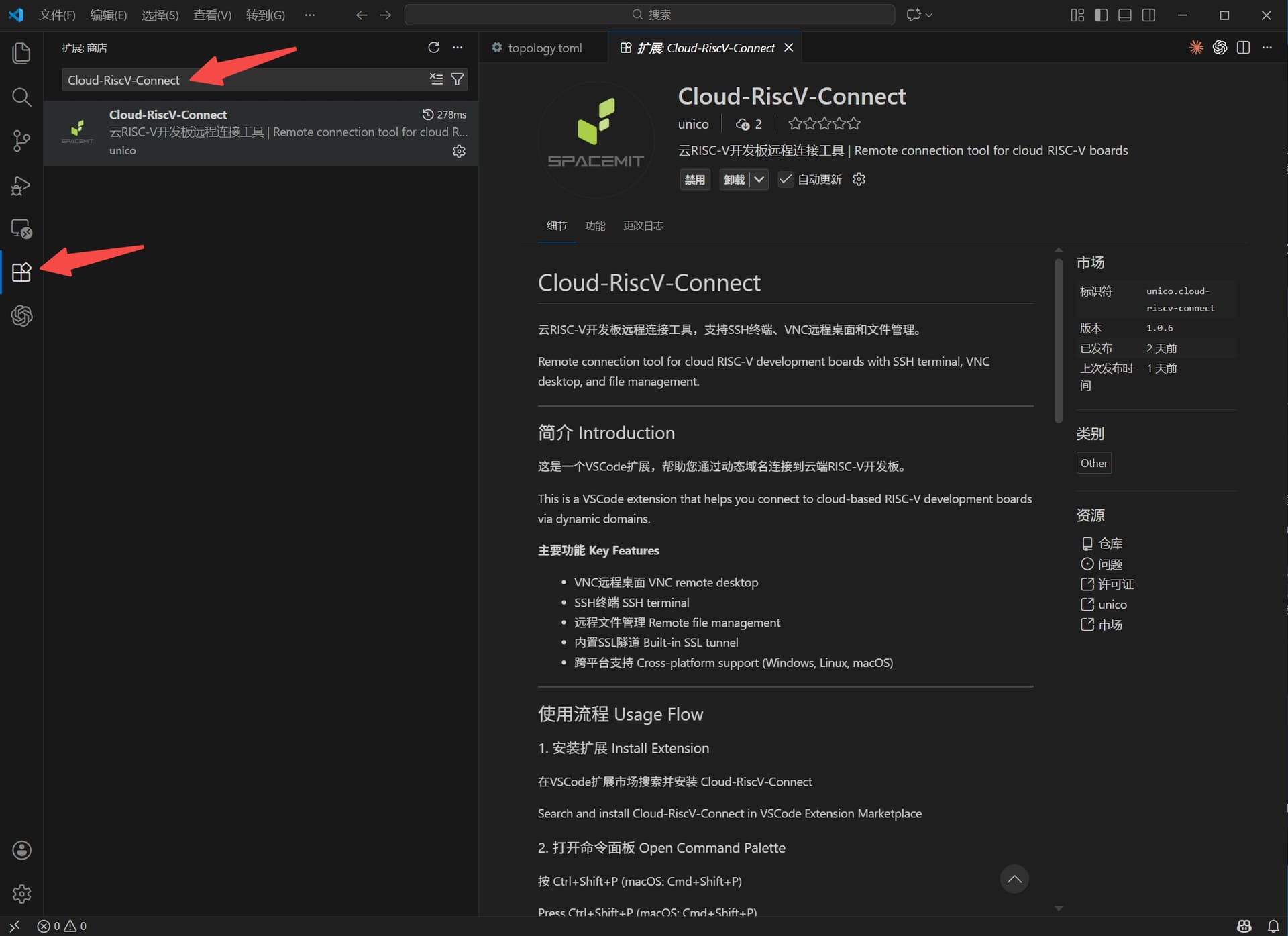
Step 3: Go to the Visual Studio Code Marketplace, search for the Cloud-RiscV-Connect extension, and install it.
Step 4: Hold down Ctrl+Shift+P on your keyboard to open the command palette, then enter “cloud: SSH Remote Connection: Connect to Remote RISC-V Device”.
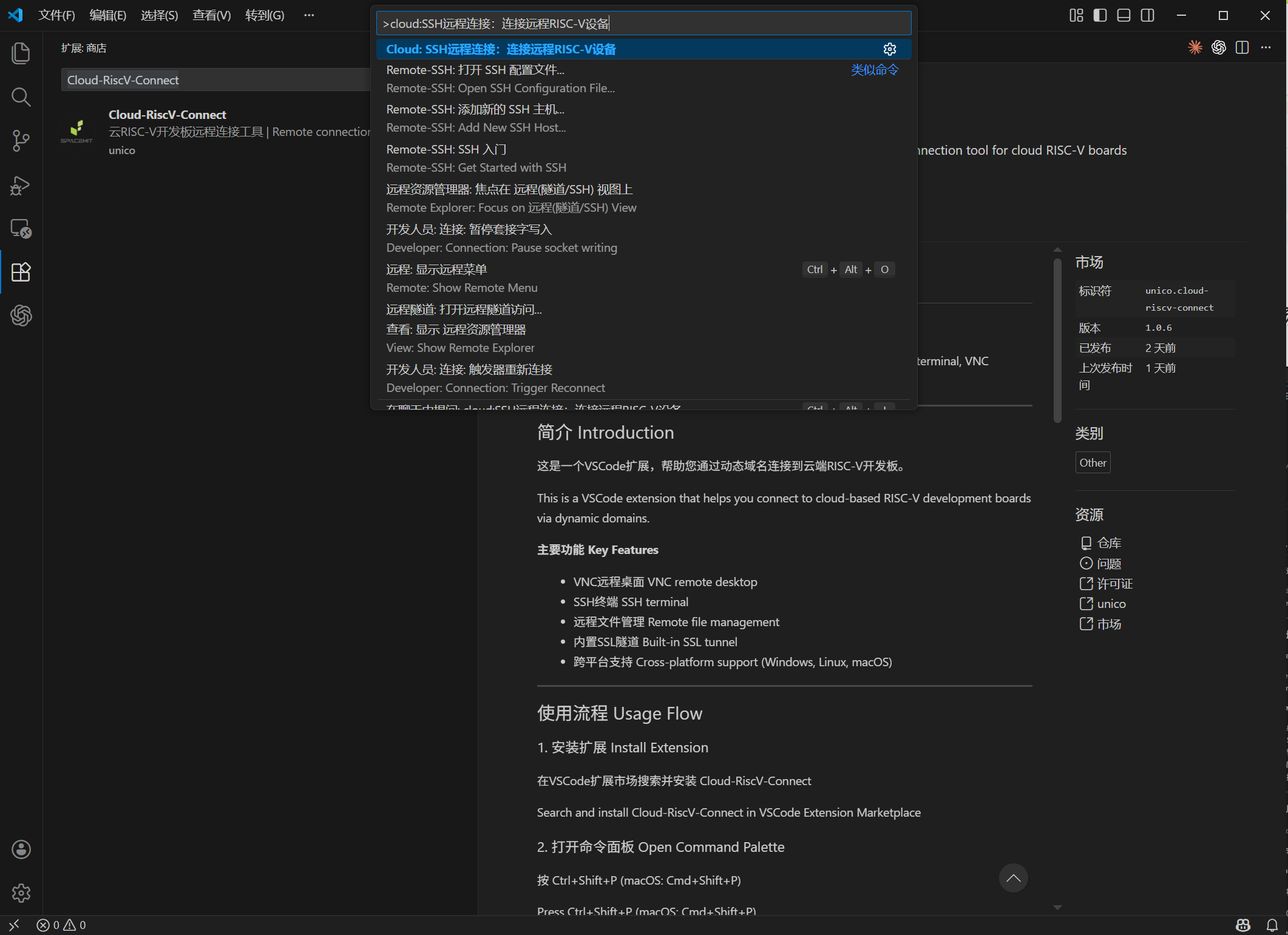
Step 5: Enter the unique subdomain dynamically generated for your development board instance that you copied earlier.
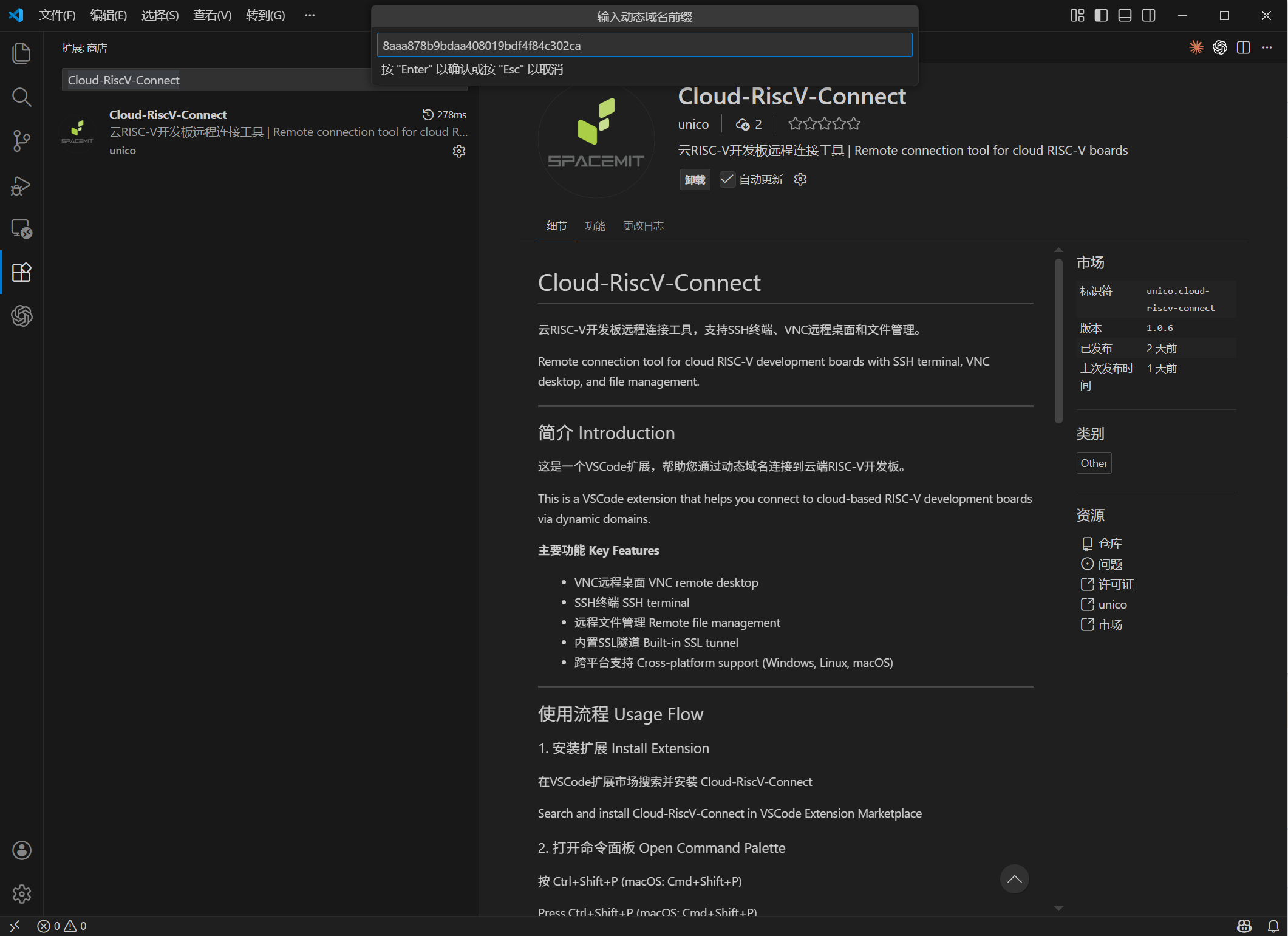
Step 6: Press Enter on your keyboard and wait for the connection. The successful connection is shown below.
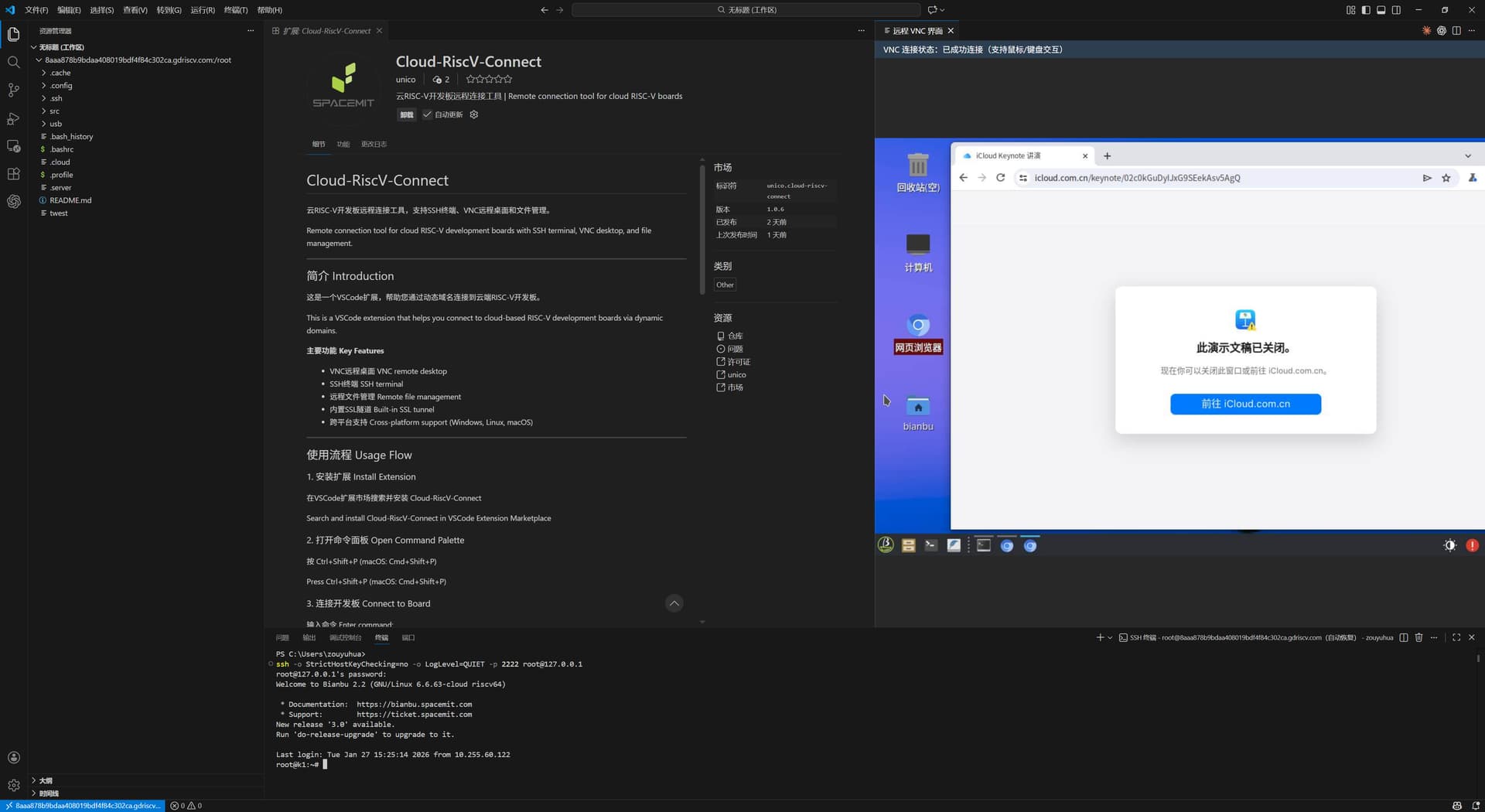
Summary: This Visual Studio Code extension supports Windows, Linux, and macOS. When using it on Windows, the terminal may prompt you to re-enter the password for the remote Linux development board. Enter the password “bianbu” to connect to the remote terminal.
Some Windows users may encounter the issue shown below when connecting to the remote terminal.
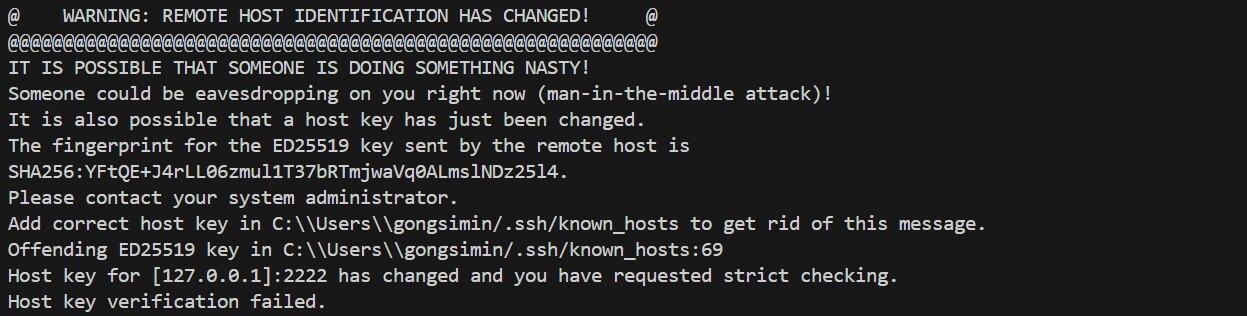
If this happens, clear the known_hosts file and reconnect.